
The connection to MyCampus Eduservices relies on institutional Microsoft 365 authentication, which means that any session, cache, or personal account anomaly interferes with access to the portal. Understanding this mechanism allows you to resolve most issues before even contacting the school’s technical support.
Institutional Microsoft 365 Account and MyCampus Portal: The Technical Link to Understand
Most guides simply list the connection steps. The real issue, in practice, lies upstream: MyCampus is backed by a Microsoft 365 account provided by the school. This unique account grants access not only to the student portal but also to Outlook, Teams, SharePoint, and OneDrive.
This architecture has a direct consequence. If the institutional Microsoft account is misconfigured, or if the session expires without the user noticing, the entire MyCampus portal becomes inaccessible. The problem then does not stem from the platform itself, but from the Microsoft authentication layer.
Several recent reports confirm that this coupling is the primary cause of blockage. A student attempting to access MyCampus while a personal Microsoft account (Outlook.com, Hotmail) is already active in the same browser encounters a session conflict. The portal redirects to the wrong account, and the connection fails without an explicit error message.
To better understand the complete procedure and connect to Eduservices MyCampus smoothly, you must first master this technical environment on the browser side.
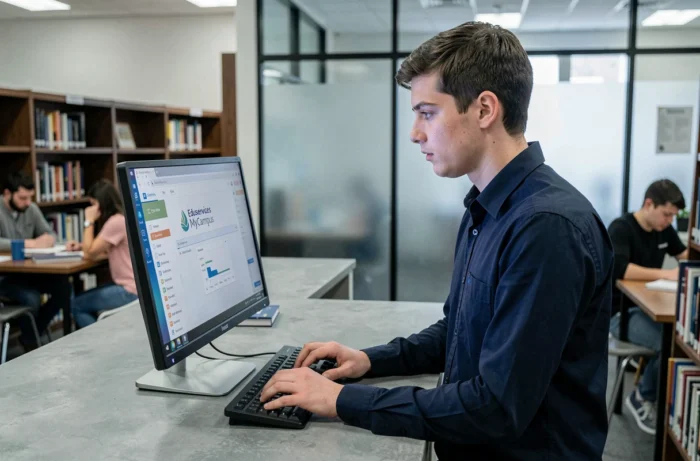
Dedicated Browser Profile for MyCampus: The Method that Stabilizes Access
Creating a separate browser profile for the school account is a practical approach that is not included in standard guides. It resolves the conflict between Microsoft accounts at the source.
Why a Distinct Profile Changes Everything
A browser profile isolates cookies, session tokens, and connected accounts. By dedicating a profile for school use, you prevent your personal Microsoft account from interfering with MyCampus authentication.
On Chrome, Firefox, or Edge, creating a profile takes less than a minute. The operation involves adding a user in the browser settings and then logging in exclusively with institutional credentials.
Recommended Configuration for the School Profile
- Use only the Microsoft account provided by the institution (format [email protected] or similar) in this profile, never adding a personal account.
- Disable unnecessary extensions (ad blockers, built-in VPNs), as some interfere with Microsoft authentication redirects.
- Clear the cache and cookies of this profile if a connection fails after a long period of inactivity, rather than retrying in a loop.
A dedicated profile eliminates most connection failures related to the workstation. This approach also applies to Hyperplanning, which often shares the same authentication mechanism within the Eduservices group.
MFA and MyCampus Connection: Diagnosing Multi-Factor Authentication Failures
Multi-factor authentication (MFA) has become widespread on student portals within the Eduservices group. Two-step validation is now a frequent cause of remote connection failures.
| Symptom | Probable Cause | Corrective Action |
|---|---|---|
| Verification code never received | Phone number not registered or outdated in the Microsoft account | Update the number via aka.ms/mysecurityinfo from the dedicated profile |
| Ignored or expired push notification | Microsoft Authenticator app not synchronized | Open the app, force synchronization, then restart the connection |
| Redirect loop after MFA validation | Session conflict between two Microsoft accounts in the same browser | Switch to the dedicated browser profile or open a private browsing window |
| Message “your account has been locked” | Too many failed attempts in a short time | Wait for the indicated time, then retry with the correct browser profile |
The table above covers the most documented cases. The redirect loop is the most common trap: the user successfully validates the MFA, but the portal sends them back to the login screen because another Microsoft account is active in the background.
Check MFA Configuration Before the Start of Term
The time when MFA issues concentrate is at the start of term, when thousands of students log in for the first time. Checking in advance that the phone number and the Authenticator app are correctly associated with the institutional account prevents a blockage on the big day.

Local Environment and MyCampus Connection: Checks on the Workstation Side
Connection issues are increasingly related to the local environment, not the portal itself. The browser cache, installed extensions, and browser version play a direct role.
A browser whose cache has not been cleared for several weeks retains expired session tokens. The portal then attempts to reuse an expired authentication, resulting in either a blank screen or a redirect loop.
- Check that the browser is up to date: outdated versions of Chrome or Firefox do not always support the recent authentication protocols used by Microsoft.
- Test the connection in private browsing: if the portal works in private mode but not in normal mode, the problem comes from the data stored in the browser profile.
- Temporarily disable extensions one by one to identify which one is blocking the authentication redirect.
This elimination diagnostic logic is more effective than multiplying connection attempts, which risk triggering an account lock by the MFA.
Accessing MyCampus Eduservices without friction relies less on memorizing a procedure than on preparing the technical environment. A dedicated browser profile, correctly configured MFA, and regularly cleared cache cover almost all situations of blockage encountered by students from the schools in the group.